7. Troubleshooting
This document describes how you can check and troubleshoot the VPL Jail System. For more details about VPL, visit the VPL home page or the VPL plugin page at Moodle.
7.1. Checking your server
7.1.1. Service status
You can check the status of the service using the following command in a terminal on your server:
Using systemd:
systemctl status vpl-jail-system
or using System V:
service vpl-jail-system status
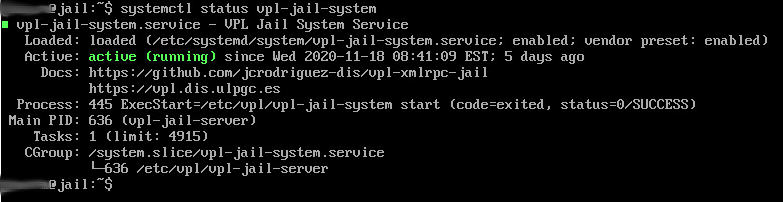
Example of systemctl output for an idle service
7.1.2. Accessible from a browser
You can check the availability of your execution server using the URL:
http://servername:PORT/OK and https://servername:SECURE_PORT/OK
Where “servername” is the name of your execution server. The system must return a page with OK.
Note
The server must be accessible from the browser that uses VPL.
7.1.3. Accessible from Moodle
After adding your new server to the list of execution servers in Moodle, go to “Advanced settings > Check execution servers” in a VPL activity. You must see your server with the Current status set to ready.
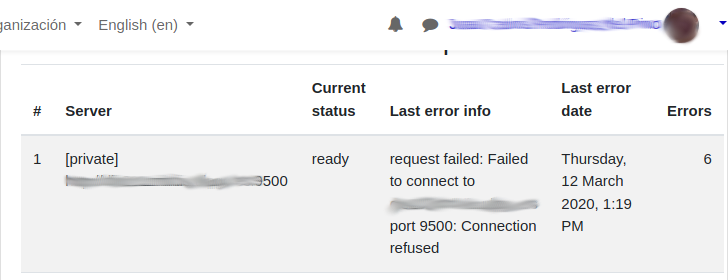
Example of “Check execution servers” output
7.2. Troubleshooting
7.2.1. Reviewing VPL jail service logs
You can see the log of the last installation at “/var/log/vpl_installation.log” and the service start/stop log at “/var/log/vpl-jail-service.log”.
You can obtain a detailed log of the execution process by changing the log level in the configuration file. Commonly, the logs are written to “/var/log/syslog”.
You may filter and explore the VPL logs with the following command:
grep vpl /var/log/syslog | less
7.2.2. Reviewing browser logs
All modern browsers have the capability to display JavaScript error logs and network connection logs. These logs can prove invaluable for examining events occurring on the browser side. Please be aware that the browser connects with the Moodle server using HTTP GET/POST requests and transmits data through a JSON payload. Furthermore, it uses WebSocket connections to communicate with the jail server.
To access the JavaScript console or Network log, you can right-click anywhere on a webpage and select “Inspect” or “Inspect Element”. In the panel that opens, click on the “Console” or “Network” tab. Remember to refresh your webpage if you want to see all the load-time logs.
7.2.3. Bug Reporting Guidelines
If you believe you’ve discovered a bug, please report it on our GitHub repository.
To help us investigate and resolve the issue efficiently, please provide a detailed description of your system configuration and steps to reproduce the problem. A typical system configuration report includes:
- Operating System Version: The exact version of the operating system you are currently running.
- VPL Jail System Version: Specify the version of the VPL Jail System you’re using.
- VPL Jail System Configuration File: Please share the content of the VPL Jail System configuration file.
- Network Configuration: Describe how your system connects to the internet.
- Browser Logs: If you have significant or relevant information from your browser logs, include it.
- Screenshots: Including screenshots can be extremely helpful in visualizing the issue. Capture any error messages or unusual behavior you’re experiencing.
- Other Relevant Information: If there’s any additional information you think might be relevant to diagnose the issue, please share that as well.
By providing a detailed bug report, you significantly help expedite the process of identifying and resolving the problem. Thank you for your cooperation!
7.2.4. Asking for help
If you don’t find the problem, ask for help in the VPL Moodle forum.
Please, describe your system configuration and how to reproduce the problem.