2. Installation
This chapter is intended for Moodle administrators and advanced users. It describes requirements, and how to install, configure, update, and troubleshooting the Virtual Programming Lab for Moodle. This chapter refers to the global plugin, and not to each VPL activity.
For more details about VPL, visit the VPL home page or the VPL plugin page at Moodle.
2.1. Requirements
To get the proper functionality of VPL, the system where you install the plugin must fulfill the following requirements.
2.1.1. Software requirements
Moodle 4.1 to 5.1.
PHP 7.4 to 8.3.
The php_extension xmlrpc is required if using XML-RPC protocol to communicate with the execution servers.
Modern browsers.
2.1.2. Hardware requirements
The plugin does not require special hardware except for the disk space used that may be large on sites with a large number of users and intensive use of VPL activities.
Examples of real activity disk space used with discard of submission period of 5 minutes:
Activity |
total submissions |
files |
users |
size |
|---|---|---|---|---|
A1 |
2800 |
>20 |
55 |
68MB |
A2 |
6674 |
5 |
80 |
110MB |
A3 |
3719 |
1 |
84 |
44MB |
Note
The number of submissions kept may be controlled with the plugin parameter Discard submission period.
2.1.3. VPL-Jail-System requirement
To be able to run and evaluate student’s code the plugin requires one or more machines with VPL-Jail-Systems installed and running. The VPL-Jail-System is an open software execution system companion of the VPL plugin. See VPL home page to download and install VPL-Jail-System.
2.2. Installing
If you are not a Moodle administrator ask your staff to install VPL.
The installation of the VPL plugin is as other common Moodle’s plugin. Follow the instruction at moodle, e.g. Installing plugins for Moodle.
2.2.1. Shortcut
Download the last version of the plugin from VPL plugin page at Moodle.
As Moodle administrator go to Site administration => Plugins => Install plugins.
Drop the zip file there and follow the page instructions.
2.3. Plugin’s global configuration
This section describes the global configuration options of the plugin. These options are shown at first installing. A Moodle administrator can change options by going to Site administration -> Plugins -> Virtual programming lab.
2.3.1. Execution server communication protocol
This setting allows you to select the protocol used to communicate with the execution servers. The available options are JSON-RPC (default) and XML-RPC. The JSON-RPC protocol removes the need for the PHP-xmlrpc extension but requires VPL-Jail-System 3.0.0 or higher.
2.3.2. Global maximum execution resources limits
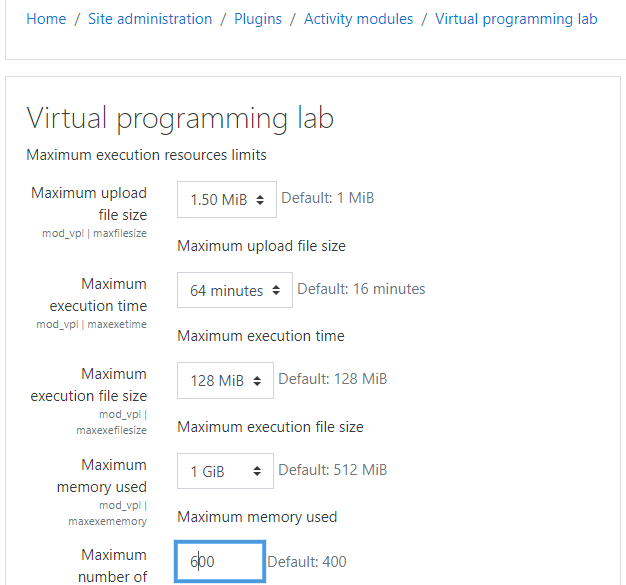
These parameters control the maximum limit of resources used by submissions or running tasks in a jail server. For each activity, teachers can set these limits without surpassing the maximum set here. The limits used by default, if no limit is selected, are set in the section Default execution resources limits.
Note
These limits can be reduced by PHP own limit as upload_max_filesize, post_max_size, etc., or by the jail server’s own limit. The minor value is applied.
2.3.2.1. Global maximum upload file size
Set the global maximum size of each uploaded file by the submission page, editing, etc. Default value: 1 MiB
2.3.2.2. Global maximum execution time
Set the global maximum execution time of a running task. When the task reaches the limit is aborted by the jail server. Default value: 16 minutes.
2.3.2.3. Global maximum execution file size
The global maximum size of any file created by the running task. Default: 128 MiB.
2.3.2.4. Global maximum memory used
The global maximum memory used by a running task. Default value: 512 MiB.
2.3.2.5. Global maximum number of processes
The global maximum number of processes that a task can use when running. Default value: 400.
2.3.3. Default execution resources limits
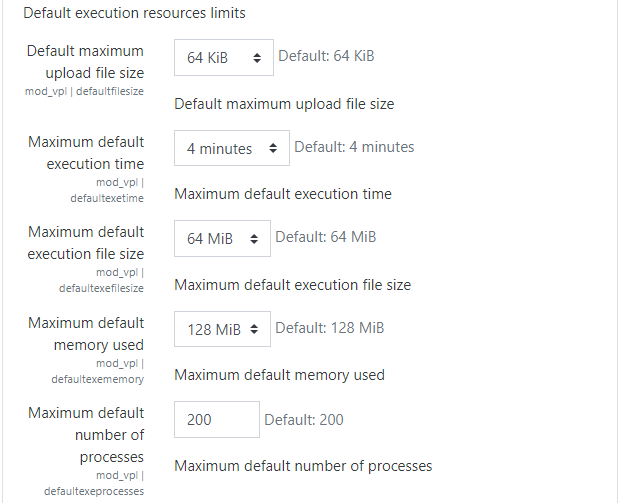
For each activity, teachers can set these limits. These parameters apply by default when no other value is selected. If a parameter was previously set to a value higher than the maximum, the maximum of the section ` maximum execution resources limits`_ is used.
2.3.3.1. Default maximum upload file size
Set the default maximum size of each uploaded file by the submission page, editing, etc. Default value: 64 KiB.
2.3.3.2. Default maximum execution time
Set the default maximum execution time of a running task. Default value: 4 minutes.
2.3.3.3. Default maximum execution file size
The maximum size of any file created by the running task. Default value: 64 MiB.
2.3.3.4. Default maximum memory used
The default maximum memory is used by a running task. Default value: 128 MiB.
2.3.3.5. Default maximum number of processes
The default maximum number of processes that a task can use when running. Default value: 200.
2.3.4. Execution servers config
2.3.4.1. Execution servers list
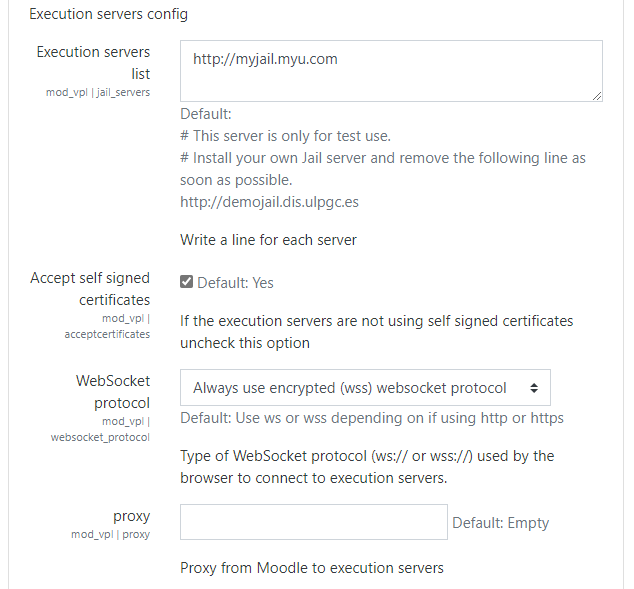
VPL needs execution servers to run or evaluate student’s code. You can indicate here those servers by writing the URLs to access the executions servers (jail servers) to use. You must write a line for each URL. You also can write blank lines and comment lines starting with #.
Note
Teachers with the mod/vpl:setjails privileges can set specific execution servers by activity.
Default value:
# This server is only for test use.
# Install your own Jail server and remove the following line as soon as possible.
http://demojail.dis.ulpgc.es
2.3.4.2. Accept self signed certificates
Select yes if you want the plugin to try to accept HTTPS connections to execution servers that use untrusted certificates. Default value: No If your execution servers are using certificates signed by a CA, uncheck this option.
2.3.4.3. WebSocket protocol
Select here the Websocket protocol to use when browsers connect with execution servers. There are three options:
Always use encrypted (WSS) WebSocket protocol
Always use unencrypted (WS) WebSocket protocol
Use WS or WSS depending on if using HTTP or HTTPS.
Default value: Use WS or WSS depending on if using HTTP or HTTPS.
Important
A bad setting in this option can break the browser communication with the execution server.
2.3.4.4. proxy
Here you must set the proxy, if any, to use from Moodle to jail servers Default: Empty
Important
A bad setting in this option can break the plugin communication with the execution server.
2.3.5. Miscellaneous
2.3.5.1. Use watermarks
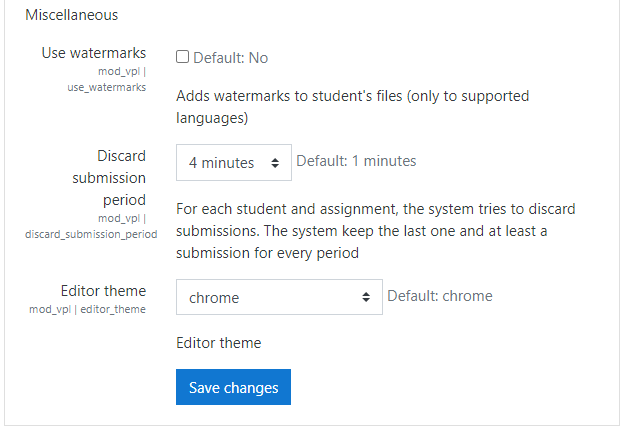
Adds watermarks to student’s files. This is an anti-plagiarism feature that supports a few programming languages and may be removed in future releases. Default: No
2.3.5.2. Discard submission period
The system keeps submissions versions for each student and assignment. To avoid keeping all versions the system may discard previous submissions. The system keeps the last one and at least another submission for every period. This means that if you set a large period, the system will use less space for versions but you will get less detail of coding evolution. Default value: 1 minute
2.3.5.3. Editor theme
You can select the default theme to use by the code editor. From version 3.4 users can select their own theme. Default value: chrome
2.4. Update
To update the VPL plugin follow the same instructions as installing at the Installation section.
Important
It is common that this plugin allows updating from previous version without loss of data, but it is highly recommended to review the release notes from the old version to the new one to check the update compatibility.
Important
After a VPL update, the users of some servers with improper cache expiration policies can have initial problems. The cache of browsers can lead to mixing of the use of JavaScript files of the current and the previous version and generate errors for a while. In these cases, the problem solves by clearing the browser’s cache (Ctrl + F5).
2.5. Troubleshooting
This section describes how you can check and troubleshoot the Virtual Programming Lab plugin. The checks can be done as an administrator or teacher by creating a VPL activity in a course and following the next indications.
See also
It is recommended to see also the troubleshooting section of the VPL-Jail-System manual.
Note
If you use more than one execution server these checks can be done in a different server each time. To select a specific server you must use the “Local execution servers”, add the server URL and a line with “end_of_jails”.
2.5.1. Checking communications from plugin to execution server
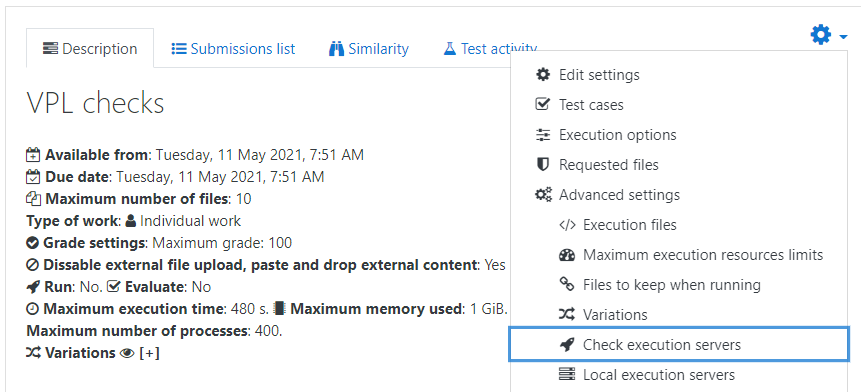
You must click on the action menu of the VPL activity and select Check execution servers.
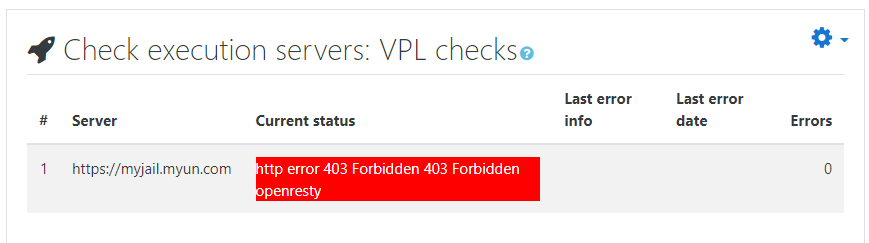
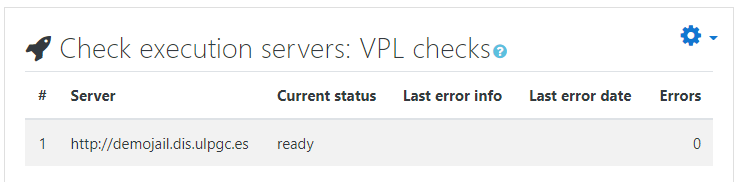
The action will check the communications from Moodle to the executions servers. You will get a report of all the execution servers available for this activity. The report includes a “Current status” field that must show “Ready”.
2.5.2. Checking communications from browser to execution server
To check the communications from the browser to the execution servers you must go to “Test activity” -> “Edit”, create a new file called “checks.all” and save it.
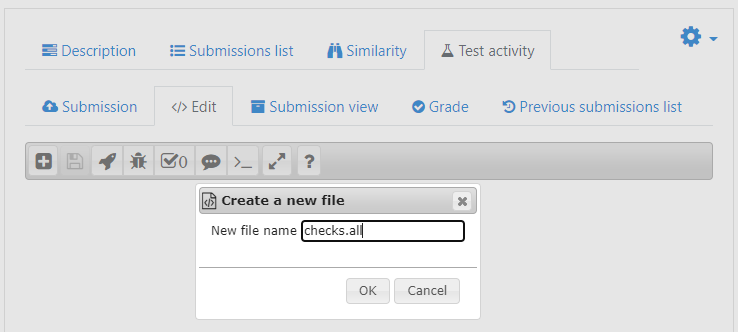
Now you can use run, debug or evaluate buttons to get different reports.
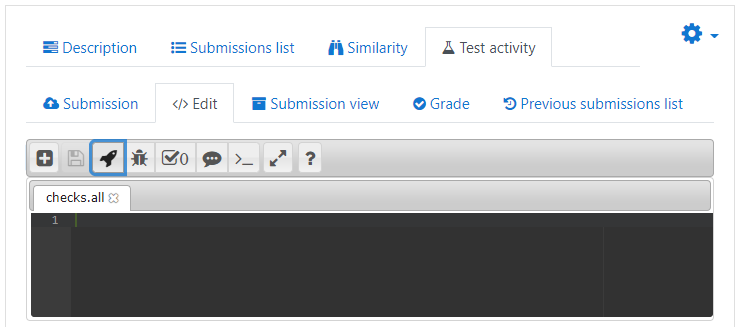
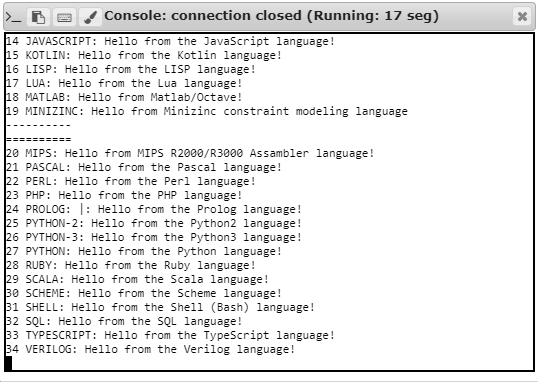
Run: Generates programs for the supported programming languages that are installed in the execution server to show a “Hello world!” from each one.
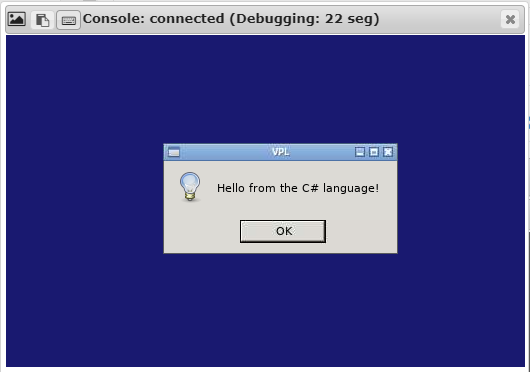
Debug: Generates programs with a graphical user interface for the supported programming tools that are installed in the execution server to show a “Hello world!” from each one.
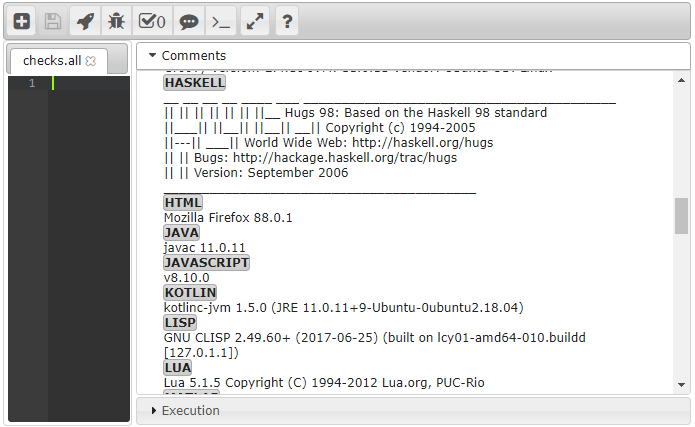
Evaluate: Tries to show execution server features and the version number of the supported programming languages tools that are installed in the execution server.
Note
These checks may require increasing the resource limits of the activity to succeed, especially for the programs with GUI.